
The magicfrog enroll command registers an existing physical computer, VM, or server as an enrolled computer on your MagicFrog account. Once enrolled, the machine appears in your computer list and becomes a target for agent operations through the device daemon.
Enrollment follows the EnrollmentState state machine: unpaired → pairing → enrolled (and enrolled → revoked on unenrollment). The CLI implementation is packages/cli/src/commands/enroll.ts; the control-plane protocol is IF-ENROLLMENT.
Prerequisites
- The MagicFrog CLI installed on the machine to enroll.
- A MagicFrog account and a control plane to enroll against. The pairing-code step consumes an account credential — pass
--tokenor sign in first withmagicfrog account login(without a valid account session the server rejects the pairing-code request with 401). - Network reachability from the machine to the control plane.
Enroll a computer
magicfrog enroll --server https://<your-host>:4096The interactive flow:
- The CLI checks for an existing enrollment. If one exists, confirm that you want to re-enroll (this replaces the stored credentials).
- The CLI requests a short-lived pairing code from the server (
POST /v1/pairing/code) and displays it with its expiry. - Confirm the pairing code by entering it (interactive confirmation; skipped with
--yes). - The CLI exchanges the code for device credentials (
POST /v1/enrollments), sending the computer name, a device fingerprint, and detected capabilities. - The credentials are stored locally and the computer appears under your account as an enrolled computer.
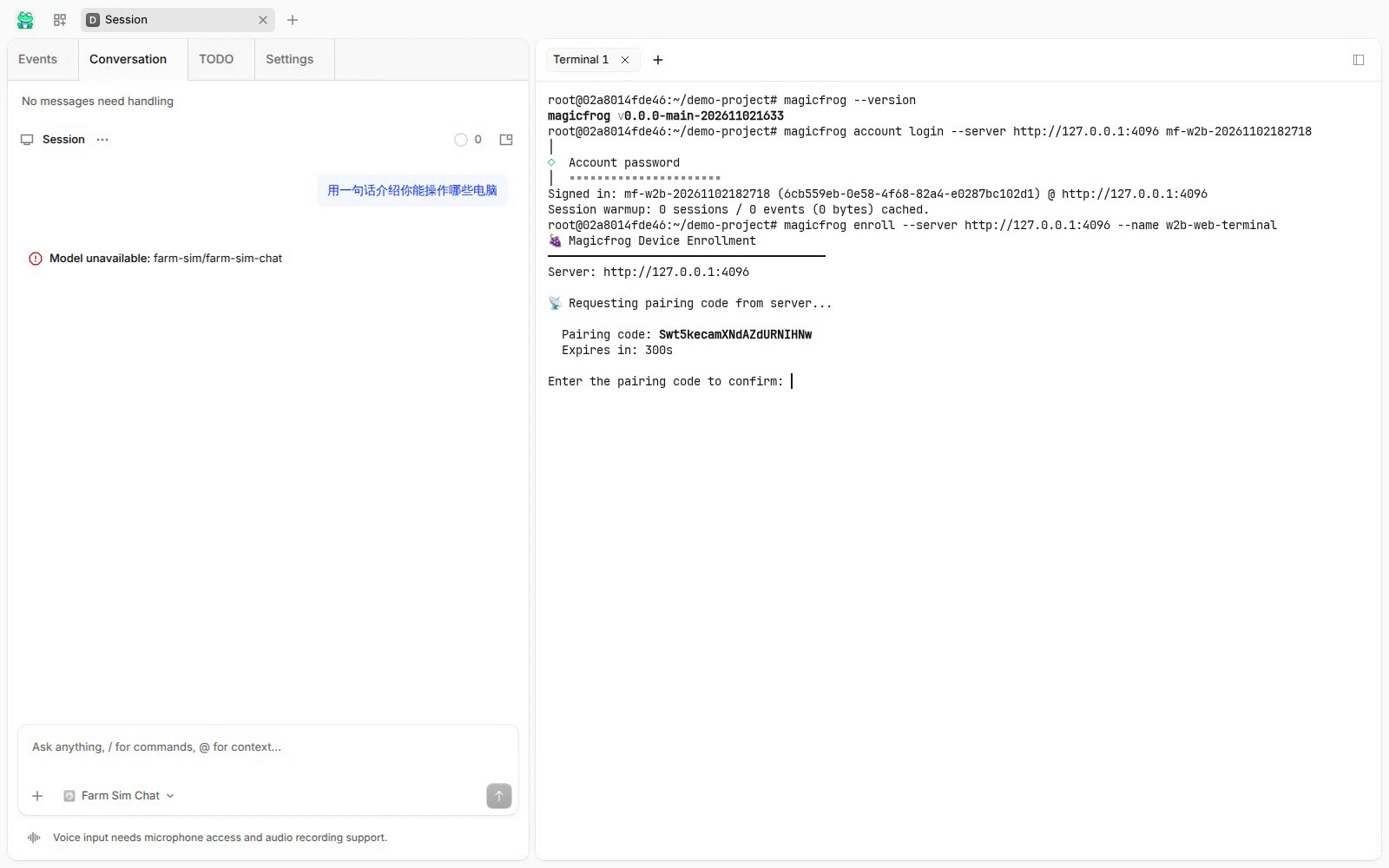
The screenshot is a frame from a real enrollment recorded against a running self-hosted server: the CLI prints the pairing code and waits for the same code to be entered back to confirm.
Useful flags:
| Flag | Effect |
|---|---|
--server <url> |
Control plane URL to enroll against (required to enroll). |
--token <token> |
Account token used to request the pairing code (defaults to the stored account session). |
--name <name> |
Display name for the enrolled computer (defaults to the hostname). |
--yes |
Non-interactive mode: accept the displayed pairing code and re-enroll without prompting. |
Non-interactive enrollment:
magicfrog enroll --server https://<your-host>:4096 --name build-agent-01 --yesDevice credentials
Credentials are written to ~/.magicfrog/credentials/device.json with file mode 0600:
{
  "deviceId": "uuid-v4",
  "deviceToken": "bearer-token",
  "serverUrl": "https://<your-host>:4096",
  "accountId": "uuid-v4",
  "computerId": "uuid-v4",
  "enrolledAt": "ISO-8601",
  "fingerprint": "sha256(hostname:platform:arch:cpus:totalMem).slice(0,32)"
}
The device credential is a separate channel from your account session: it has its own token, is presented as Authorization: Bearer <deviceToken>, and can be revoked independently without touching your account login. The daemon reads the same file, so it is the single source of truth for the device's identity on this machine.
The fingerprint is derived from machine characteristics (hostname, platform, architecture, CPU count, total memory) and identifies the physical machine to the control plane.
Capability detection
During enrollment the CLI reports the machine's capabilities:
| Capability | Detection |
|---|---|
os |
windows / macos / linux from the platform. |
arch |
x64 / arm64. |
shell, fileSystem, terminal |
Always available. |
browser |
Reported as available; verified at runtime. |
desktop |
Platform-dependent — macOS requires Screen Recording permission, Windows requires remote desktop to be enabled. Account login alone does not grant OS-level desktop control. |
Unenroll (revoke)
magicfrog enroll --unenrollThis calls DELETE /v1/enrollments/{computerId} with the device token, removes the local credential file, and leaves the machine's data completely untouched — unenrollment revokes access, it does not shut down, wipe, or modify the original computer. To enroll again later, run magicfrog enroll normally.
After enrollment
Start the device daemon so the machine accepts work from the control plane:
magicfrog daemon status
magicfrog daemon start
See the daemon's own status for connection and execution health.